This chapter gets you from "I have a login link" to "I can read every part of the screen."
Logging in
Your professor will give you three things:
| Where to type it | |
|---|---|
| Simulation ID | The "Simulation ID" field |
| Hotel name | The "Hotel Name" field — exact spelling, capitalization matters |
| Password | The "Password" field |
Open the simulator URL, click Hotel Team on the landing page, and enter those three values.
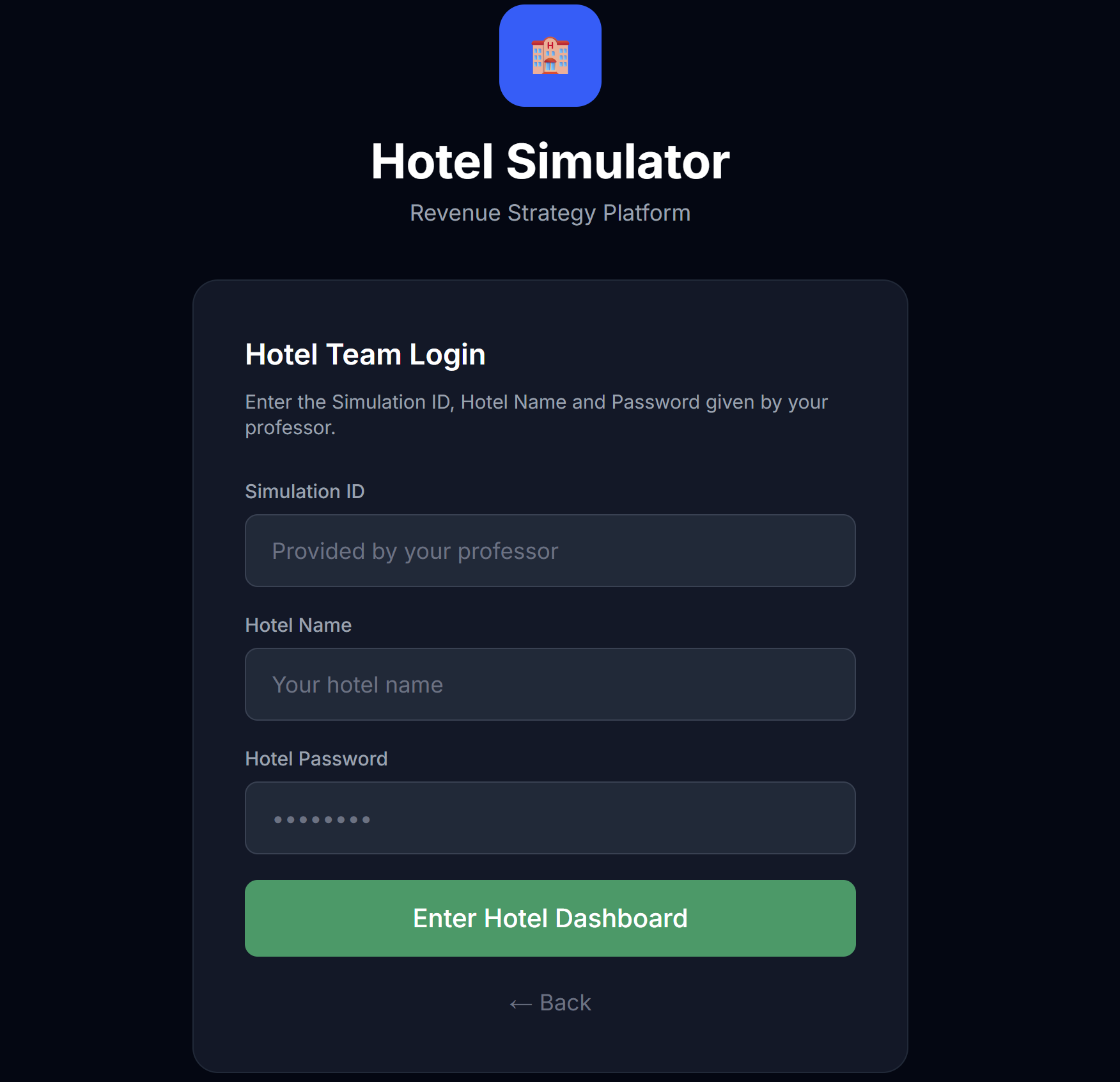 The hotel-team login. Three fields — that's it.
If your hotel name or password is wrong, the form will tell you. If the simulation ID is wrong, you'll be sent back to the landing page.
Where you land
After login you arrive at your Results Dashboard. The first time you log in there won't be much here yet — no periods have run. That's normal.
 The top bar — your hotel's vital signs at a glance.
The top bar is the most important strip of pixels in the simulator. From left to right:
| Element | What it means |
|---|---|
| Hotel name | Your hotel |
| Type pill | Luxury / Upscale / Midscale / Budget — your hotel's category |
| Star rating | Industry-style 1–5 stars, based on amenities and brand |
| Service score pill | A measure of your hotel's operational quality, built from the amenities you've installed and your brand affiliation. Higher is better. |
| Reputation pill | Your long-term word-of-mouth. Higher is better. |
| Period N | The period currently open for editing |
| Cash pill | How much money you have to spend |
If you've made decisions that haven't been run yet but will change your reputation or service score, the pill will show a small projection arrow (e.g. Rep 64 → 78). That's the engine telling you "after this period runs, expect this." It's a preview, not a guarantee.
Switching language (EN / ES)
In the top-right of the hotel header, next to Logout, are two small pills — EN and ES. They toggle the language of the interface. English is the base language; pick ES and the interface is translated into Spanish. You can switch anytime.
One thing stays English on purpose: revenue-management vocabulary (Revenue, RevPAR, ADR, OTB, pace, forecast, Retail, Advance Purchase). That's the industry standard you're here to learn, so it reads the same in both languages.
💡 Your choice is remembered for your hotel, and it also sets the language of the downloadable Excel workbook (Chapter 5). Switch it once and everything follows.
The six tabs
Below the top bar are six horizontal tabs:
 The tabs you'll live in.
| Tab | What you do here |
|---|---|
| Results | Read what happened last period (P&L, daily breakdown, occupancy, ADR) |
| Decisions | Set prices and inventory for the next month, commit your forecast |
| Leaderboard | Compare your performance to competitors (you see indices, not their dollar numbers) |
| RFPs | View open corporate / group bid requests and place bids |
| My Hotel | Configure your hotel itself — amenities, loyalty / brand, channels, marketing |
| 📬 Comunicaciones | Read official briefings from your professor — announcements, market context, results commentary |
You will spend the most time in My Hotel (especially in early periods) and Decisions (every period).
💡 When there are briefings you haven't read yet, the 📬 Comunicaciones tab shows a red badge with the number of unread briefings. Make checking it part of your start-of-period routine — briefings often contain context that should shape your decisions.
The two-stage workflow every period
This is the single most important habit:
First set up your hotel in My Hotel. Then set prices and submit in Decisions.
Here's why: things you change in My Hotel — like installing a spa, joining a loyalty program, or activating a marketing campaign — affect how guests perceive your hotel, which affects who books with you and at what price. If you set prices before deciding to install a spa, your pricing strategy may be off.
The Decisions tab has a reminder banner about this:
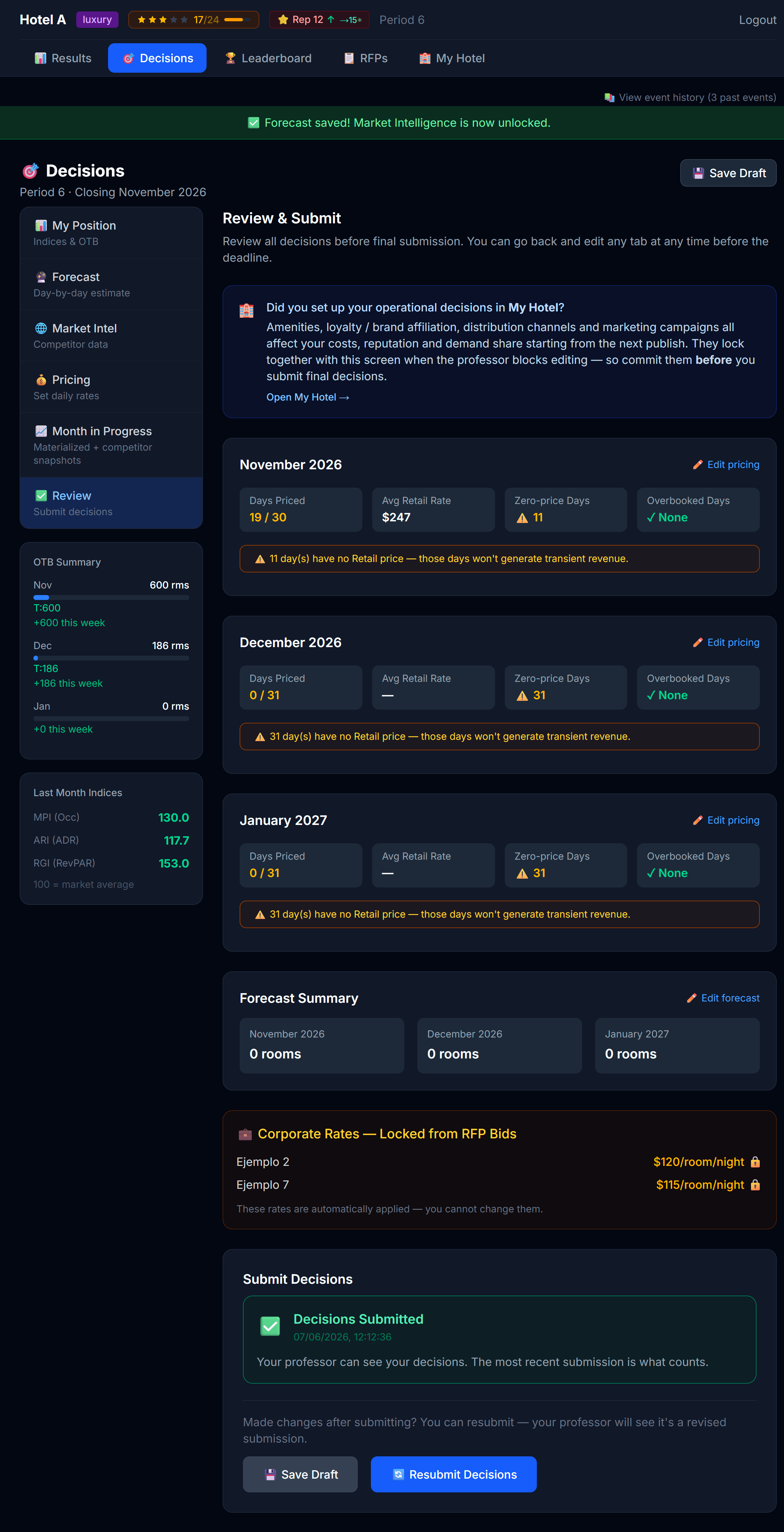 The "Did you set up My Hotel?" banner appears in Review & Submit. It's there for a reason.
When you can't edit
Your professor controls when you can make changes. Two things can lock you out:
- The period is closed. No editing once the professor has run and published the period.
- The professor locks editing. Even with the period open, the professor can lock editing — usually right before they run the period so nobody changes anything mid-run.
When either is true, you'll see a 🔒 banner at the top of any editable page, and the inputs go gray:
 Locked state. You can still read everything; you just can't change anything.
Logging out
Top-right corner. There's no "auto-save" warning — anything you typed but didn't save is gone, so always click Save on each tab before logging out.
Next
→ Chapter 3: Setting Up Your Hotel (My Hotel tab)